


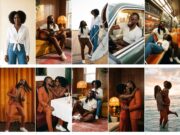













Learning how to make AI music videos became a practical job when Pelli, an artist who had just released One in a Million, needed promotional content for the song. I used Higgsfield to turn his photos, music and a visual idea into a 60-second vertical promo. The challenge was making him recognizable across nine scenes, giving those scenes believable movement and cutting them into something that served the release.
Higgsfield was the first AI creative platform I started with. I’ve watched it evolve over the past year and used it for music videos and promotional projects for myself and others. Knowing the models, tools and workflow can feel like having creative superpowers. The useful part is being able to turn that knowledge into a finished result for someone who needs it.
This guide follows the real Pelli production, including the prompts we changed and the tests and corrections we made. It also opens up Cinema Studio’s current controls so you can see how to direct a new sequence. I used Cinema Studio for my own Spaceship music video; Pelli’s promo used Nano Banana Pro for images and Seedance 2.5 for motion.
Key takeaways
To make an AI music video, plan the song excerpt, lock the artist’s look with reference photos, approve still frames before animating, lip-sync to the real audio and finish in the edit. This promo was made with Higgsfield, a generative platform for creative production, using Nano Banana Pro for images and Seedance 2.5 for motion.
Watch the finished Pelli promo
1. Start with the song and the job the video needs to do
A release teaser and a full-length music video need different plans. For this project, the deliverable was a one-minute, 9:16 promo. We had Pelli’s photos, the song, its lyrics and a folder of visual inspiration. Pelli has approved use of his likeness and song in this sponsored article.
Before generating anything, decide which part of the song you want people to remember. Then decide where the artist performs, where a story develops and where a location or detail gives the edit room to breathe. A guitar performance, a train scene and a sunset embrace have different jobs even when they share the same visual style.
For your own brief, write down the song excerpt, running time, delivery format, intended audience and final action. An artist’s name and release message need space in the finished frame. Plan for them before placing a face or an important prop where the title will go.
2. Keep the artist and every recurring character consistent
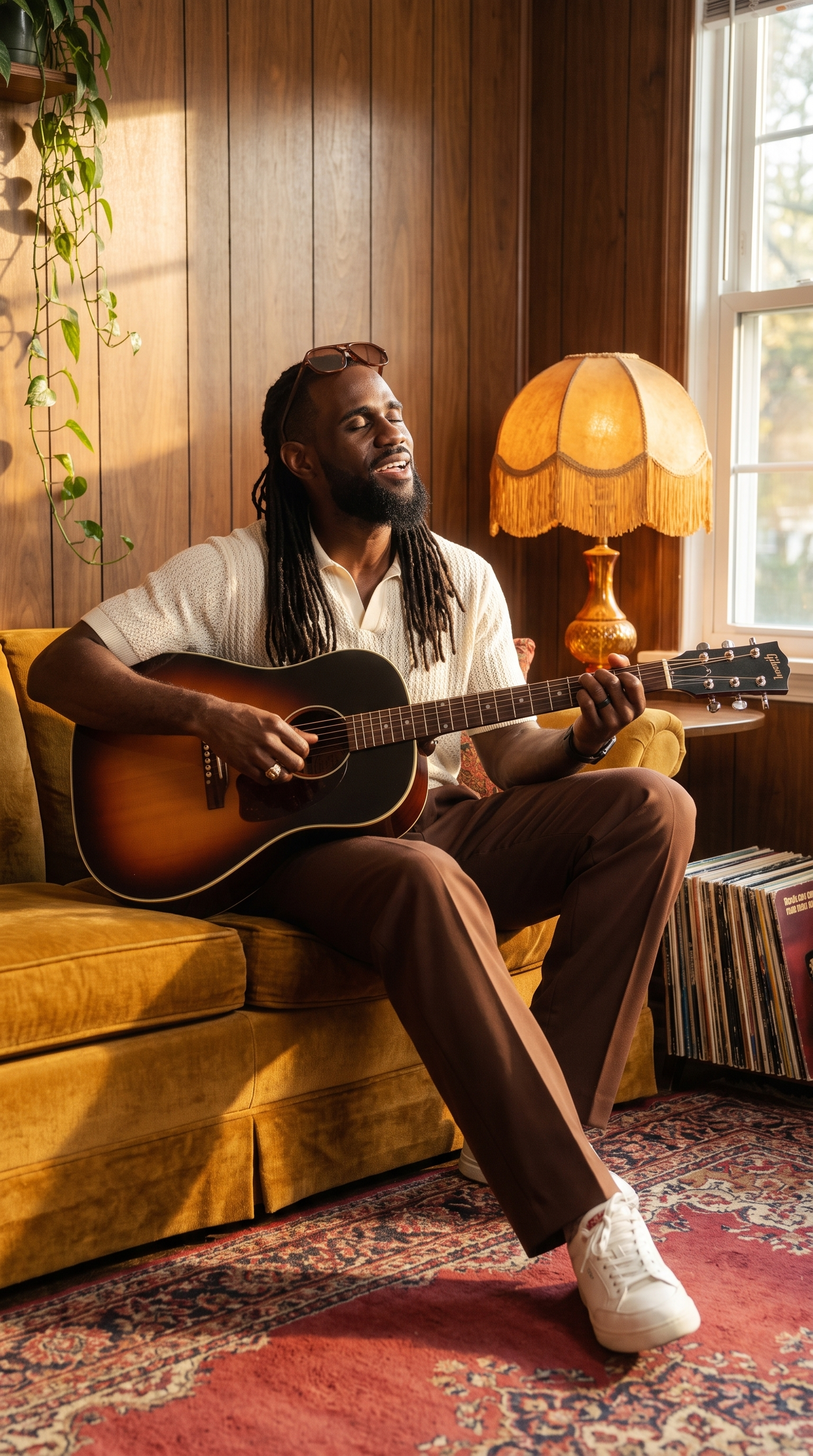
We began with a continuity bible: a short document fixing the look, clothing, locations and props. Pelli’s world used warm tungsten light, deep browns, burnt orange, rust, cream and bottle green. A recurring room had walnut panelling, a mustard sofa, a red rug and an amber lamp. Day and night outfits were assigned to the individual shots.
The same visual-look instruction appeared across our image prompts. It called for a 35mm Kodak Portra 800 film look: a style reference for generated imagery. Reusing that language gave the images a shared target, while the reference photos gave the model an actual person to work from.
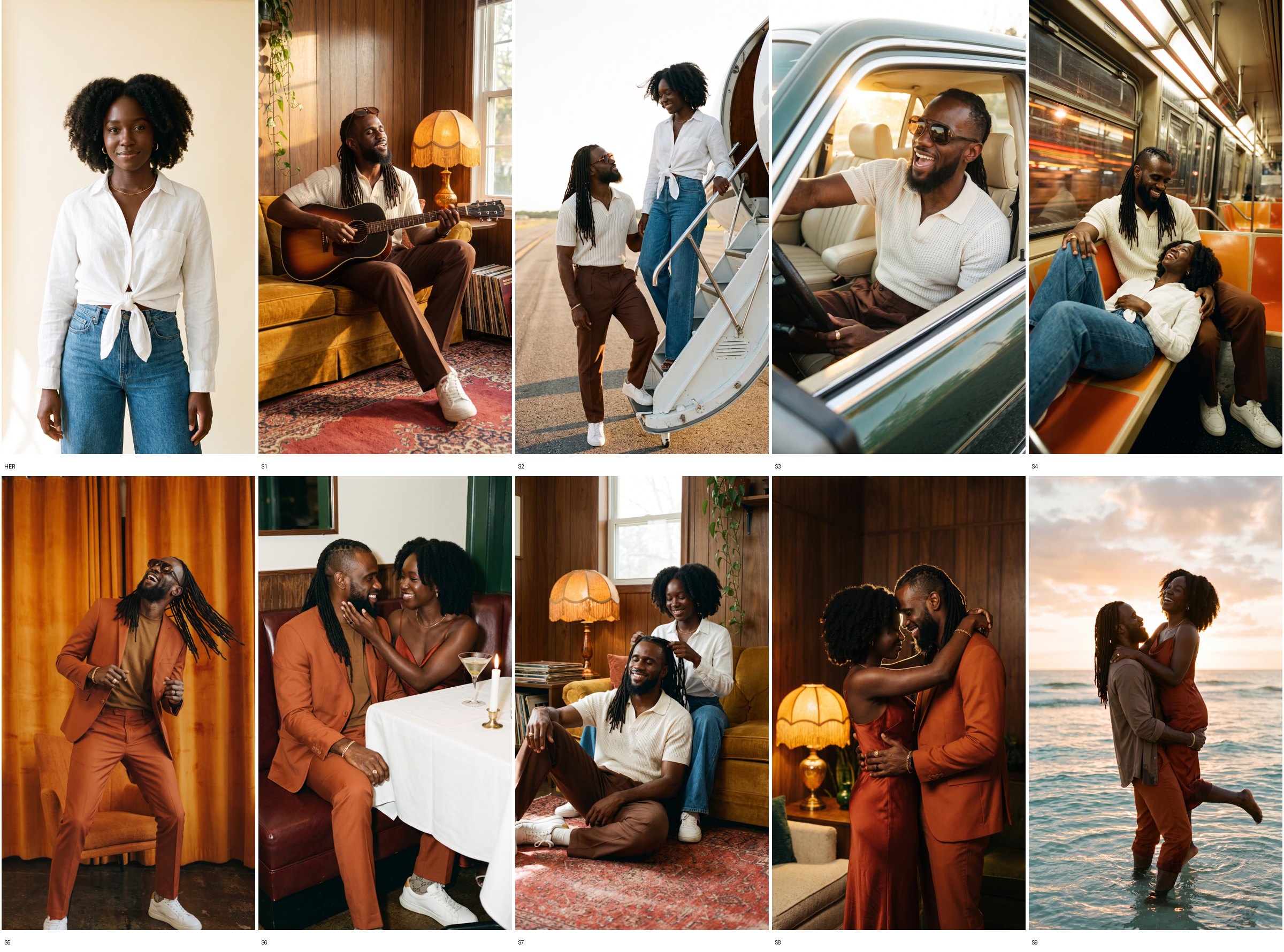
For the fictional woman, we generated a separate reference portrait in Nano Banana Pro: natural coily hair, gold hoops and a white linen shirt against a cream backdrop. That image became her identity reference. Pelli’s real photos supplied his identity. In scenes with both people, we attached both sets of references and described who was who before describing the action.
A useful continuity sheet separates what must stay fixed from what can change:
| Keep fixed | Plan for each shot |
|---|---|
| Face, skin tone, hair and identifying details | Expression, eyeline and physical action |
| The approved outfit for that part of the story | Pose and framing |
| Recurring furniture, props and location details | Camera position and movement |
| The video’s overall palette and visual treatment | Day or night lighting appropriate to the scene |
Check both characters in every two-person image. A convincing close-up of the artist does not tell you whether the other character’s face, clothing or proportions have drifted. For this promo, the generated scenes are imagined settings rather than documentary footage of Pelli visiting those places.
3. Approve the still frames before paying to animate them
Our nine keyframes covered the sofa performance, a jet arrival, a vintage green car, the train, an orange-suit performance, a candlelit booth, a hair-twisting scene, a lamp-lit dance and a sunset embrace. We used Nano Banana Pro for the stills.
Review at full size. We paid for three targeted corrections: showing the full jet against a sunset, restoring Pelli’s locs in the car image and changing footwear for continuity. The footwear correction introduced an extra pair of sandals on the rug. We kept that imperfection rather than spending on another attempt.
Before motion, ask whether the image gives you the right face, a usable composition and a plausible starting position for the action. If a hand is already tangled with a prop, or the artist’s face is wrong, resolve that before asking a video model to extend the problem across multiple frames.
4. Direct a new sequence in Cinema Studio
This is where Higgsfield Cinema Studio becomes useful: it puts references, film setup, camera choices, color and lighting beside the scene prompt. Instead of trying to express the entire visual plan in one paragraph, you can work through those decisions in the interface.
The screenshots below come from Cinema Studio 4.0 as inspected for this guide. They show how to prepare a new sequence; they are separate from the September workflow that produced Pelli’s promo. Start in Video mode, check the selected model, then set the frame shape and duration to suit your planned shot.

References: give the scene its people and visual anchors
Click References to open the asset picker. The current picker includes Uploads, AI Influencer, Presets, Elements, Generations and Liked. Within Uploads, filters separate images, videos and audio. That makes it easier to find a character reference or a song excerpt among the assets already in your account.
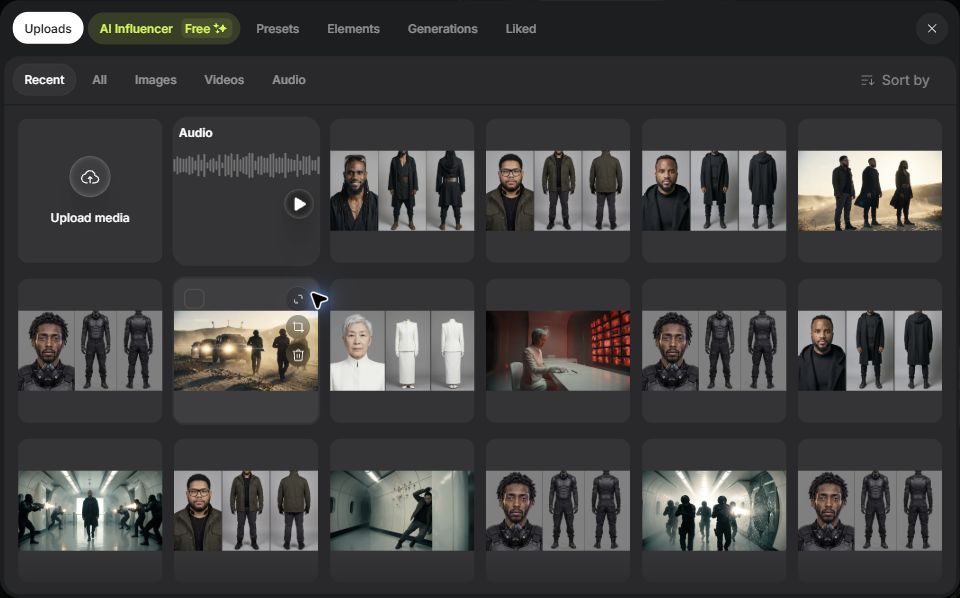
Choose references for a reason: the artist’s face, the second character, an outfit, a location or an important prop. The inspected interface allows up to 50 references, but the goal is a clear set of instructions. A smaller, relevant pack is a sensible starting point. For two people, keep their references distinct and make the prompt’s character descriptions match the attached images.
Film setup: separate the story’s tone from its pace
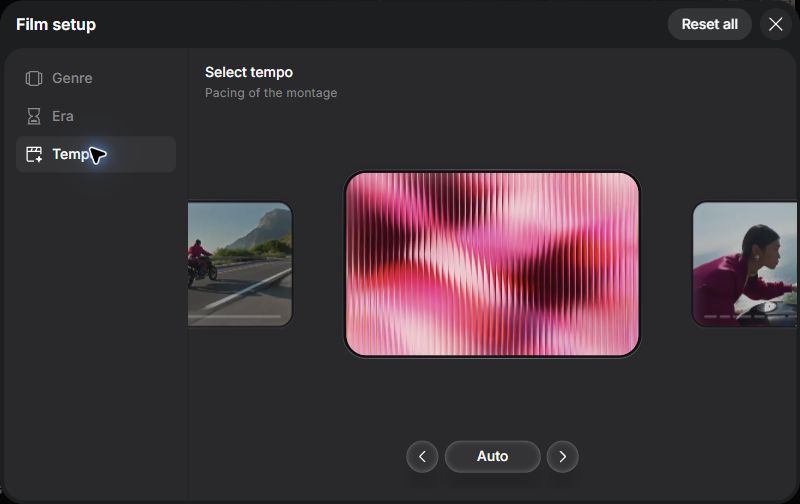
Open Film setup and you will find Genre, Era and Tempo. Genre supplies a story direction, Era sets a period treatment, and Tempo is labelled as the pacing of the montage. These are different decisions: a romantic scene can share a visual era with a performance shot while using a calmer pace.
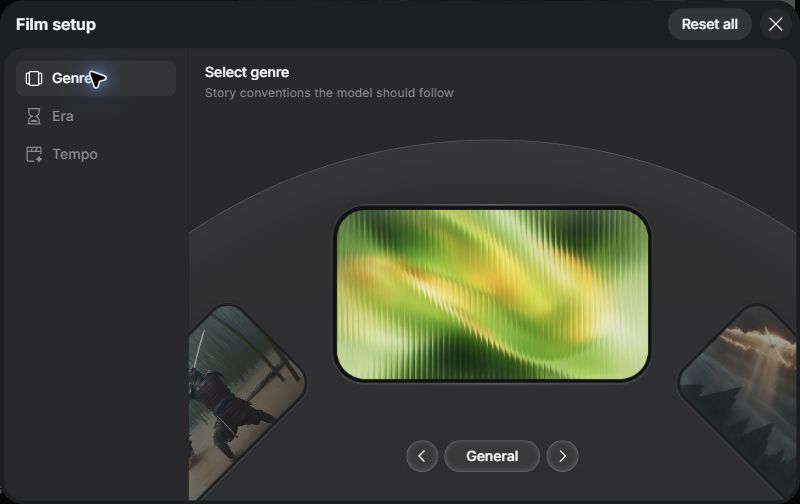
Tempo includes choices such as Dynamic, Calm and Single shot. For an uninterrupted performance, Single shot is a useful option to consider; for a sequence intended to contain cuts, inspect the montage choices. Keep your actual song timing in the edit. A tempo choice in this panel does not replace planning where a lyric, beat or chorus lands.
Camera setup: choose the image character and focus
The Camera panel opens on Setup, with separate columns for camera, lens and aperture. The options we inspected include Modern, 35mm Film, 8mm Film and DV Camcorder camera looks, alongside lens treatments and aperture choices.
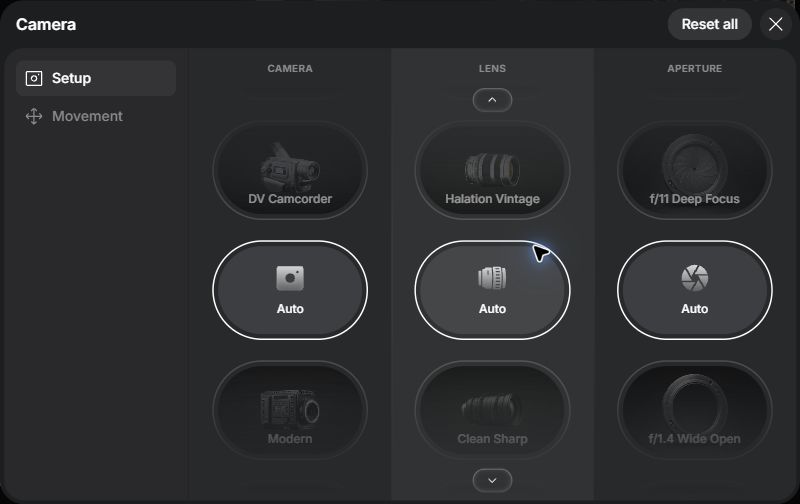
For a new warm performance scene, I would begin by comparing 35mm Film with a warm lens treatment, then choose how much background detail the shot needs. Those are proposed creative choices, not the settings used for Pelli’s finished film. Decide the look before judging the motion, so a camera test is not also an uncontrolled change of style.
Movement: choose what the camera should reveal
Switch from Setup to Movement. The library displays visual examples, including Pan left, Crane up, Side tracking, Static shot and Dolly in. Its instructions say that a choice adds to the prompt box, that you can also type # there, and that the order matters when using several moves.
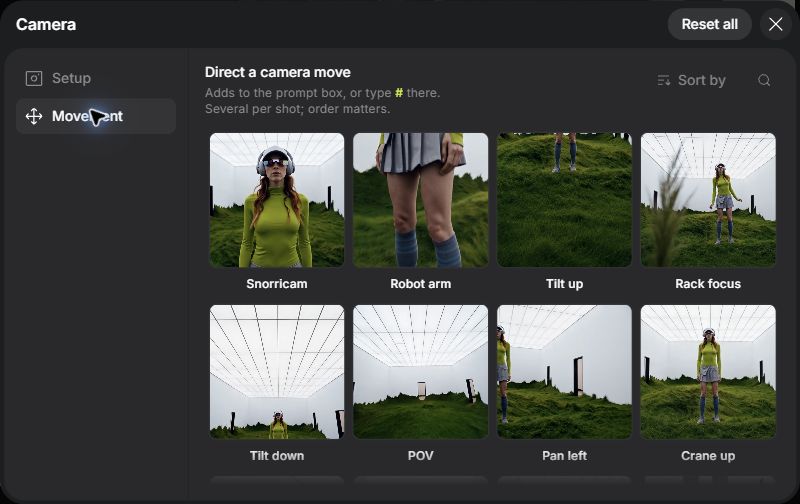
Give a move a job before choosing it. Moving toward a face can bring attention to an expression; tracking alongside a car can keep the performance readable while the background changes. For a first test, I would use one clear move and describe its starting frame, pace and ending composition.
| Shot you need | Direction to plan | What to inspect |
|---|---|---|
| An intimate reaction | A gentle dolly-in toward a face | Likeness stays recognizable as the face fills more of the frame |
| A moving car performance | Side tracking with a clear view through the window | The face, window frame and vehicle remain coherent |
| A location reveal | A pan that ends on the detail the next cut needs | The horizon and background geometry stay stable |
| A direct performance | A static shot, with movement coming from the artist | The expression and gestures carry the moment |
This table is a planning exercise for a new sequence. Pelli’s actual motion directions were written into Seedance prompts, including a slow push-in for the train scene. Whatever interface you use, camera direction and character performance both need attention.
Color palette and Lighting: carry the look across shots
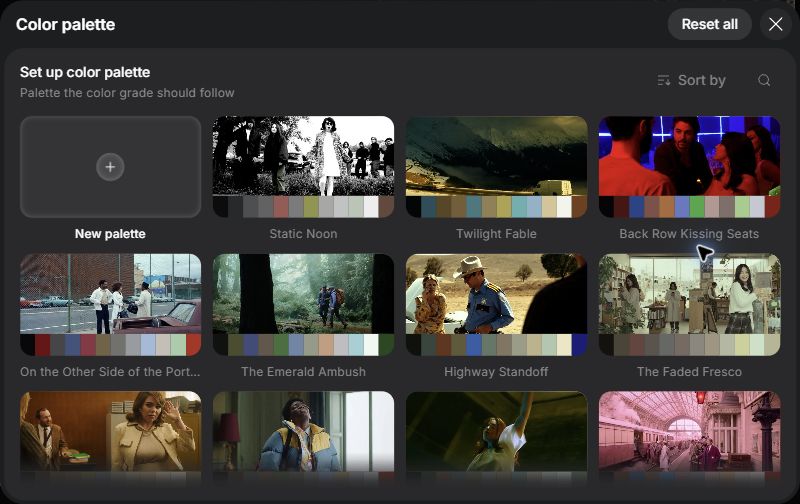
Color palette opens a gallery of reference looks with color swatches, plus an option to create a new palette. Compare these with your approved stills. For a warm romance, a cool neon palette may introduce a visual change you did not intend.
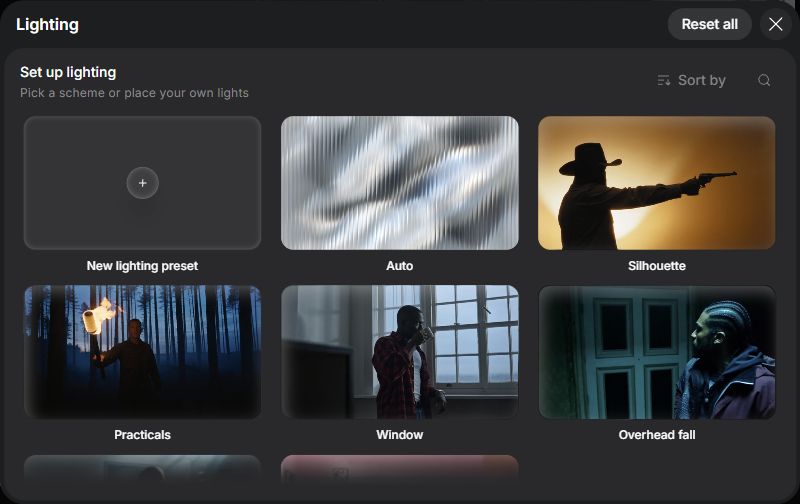
Lighting opens another visual library. The inspected choices include Silhouette, Practicals, Window and Overhead fall. Think about what needs to remain visible: an artist’s face, a gesture, the shape of a location. A dramatic silhouette can suit an atmospheric insert, while a facial performance needs enough visible detail to judge the likeness and expression.
Before generating, read the prompt once beside those choices. The action, references, camera direction and visual treatment should describe the same shot. Then check the displayed credit quote and run a short test. Opening these panels for the guide did not require generating new footage.
5. Test movement, then write a performance the model can follow
Our first Pelli motion tests were four five-second, 720p Seedance 2.5 clips with generated audio off. The camera movement was usable, but the acting needed work: the woman barely moved on the train, and Pelli’s mouth held an awkward open position in the car.
We changed the direction before increasing the resolution. One instruction, no lip movement, was removed after the frozen-mouth result. More importantly, the train prompt gave each person an action at a particular time. This is the exact action-and-camera excerpt from the saved 1080p job:
0-2s: she laughs up at him, then reaches up and playfully tugs his beard. 2-3.5s: he bends down laughing and kisses her forehead while she kicks her feet up on the seat. 3.5-5s: she pulls one of his locs across her face and they both crack up laughing. The train sways, city lights streak past the window. Camera: slow push-in.
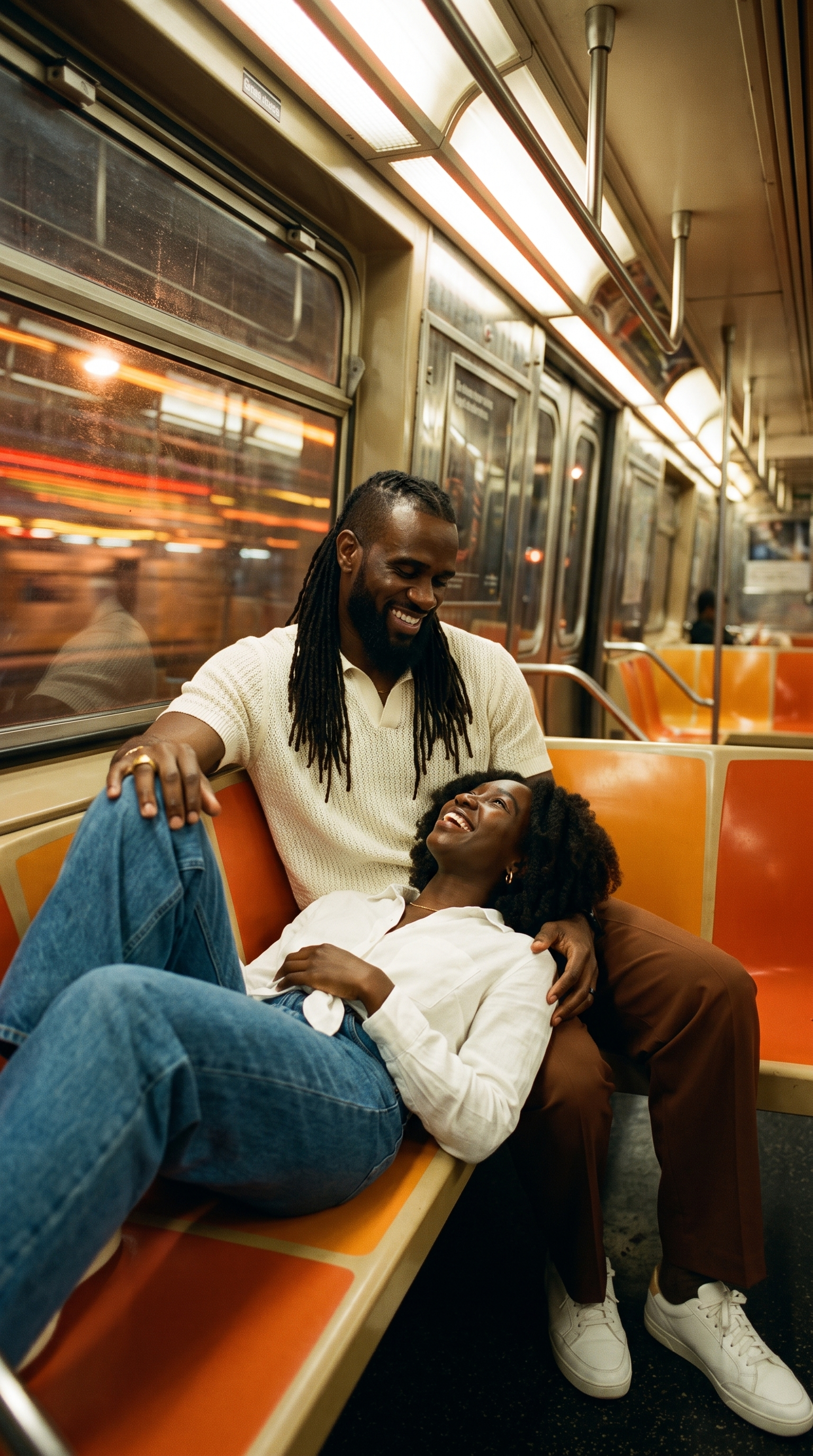
The rest of the prompt told the model to preserve faces, hair, outfits and location. The lesson is specific: an attractive starting image still needs a performance. In a short clip, use a manageable action that has a beginning and an end, then review whether the model actually delivered it.
6. Match singing shots to the actual audio excerpt
For the car and dance performances, we supplied Seedance 2.5 with the exact song slice used at those points in the edit. The input also included the starting image and identity references. The car prompt asked Pelli to sing in sync while tapping the steering wheel and moving naturally.
We tested the car shot alone before approving the remaining higher-resolution work. Most final takes were rendered in 1080p. The sofa opening kept its earlier 720p animation and used Higgsfield’s Bytedance video upscaler for the higher-resolution version.
For your own edit, check the audio segment’s start against the shot’s position on the song timeline. Watch the face at normal speed as well as frame by frame. A good-looking mouth movement can still be wrong for the words or the timing you actually need.
7. Budget for tests and corrections, not just the final shots
A finished promo includes more work than the shots that survive the edit. Our production involved reference development, still-image corrections, motion tests, final takes and an upscale pass.
| Production stage | What we did |
|---|---|
| Reference and keyframes | Created one fictional character reference and nine keyframes with Nano Banana Pro. |
| Image corrections | Made three approved corrections to improve staging, hair and wardrobe continuity. |
| Motion tests | Tested four five-second Seedance 2.5 clips at 720p before revising the performances. |
| Final takes | Used nine five-second final takes rendered in 1080p, including an alternate angle. |
| Upscale pass | Used Higgsfield’s Bytedance video upscaler for the sofa opening. |
When planning paid work, keep separate allowances for reference development, motion tests, final takes, revisions, editing and delivery. Credit costs can change as models are updated, so check the price shown for the selected model, duration and settings before committing to a batch.
Not every problem required another generation. An alternate jet angle changed the staging and Pelli’s top; we framed the usable part around the woman in the edit. That was a choice about whether the shot could serve the promo, rather than an attempt to make every generated frame perfect.
8. Make the music video in the edit
We assembled the one-minute promo locally, timed the cut to the song’s downbeats and added the warm grade, grain, light transitions, countdown graphic and animated titles. When automatic transcription struggled with the edited hook, the captions followed the original song’s word timings.
A later cut adjustment replaced a back-to-camera moment with a face-forward performance while preserving the lip-sync. These are the decisions that turn generated footage into a video. For the planning stage before that footage exists, our AI previz tools guide covers ways to develop shots and visual ideas.
Before delivery, watch the export from beginning to end and check:
- Identity: faces, hair and wardrobe remain credible across the cut.
- Performance: expressions and gestures fit the song rather than merely filling time.
- Continuity: hands, props and backgrounds hold up during movement.
- Sound: the intended song excerpt is aligned with the picture and singing.
- Presentation: titles and captions are readable, and important details survive the intended viewing format.
What creative skills add to an AI music video
Pelli needed something he could use to promote a new release. Having Higgsfield in the workflow helped us get that work done, from a visual concept through references, motion and a finished promo.
That is also an opportunity for creatives who understand these tools. An artist or business owner may know the result they want without wanting to learn models, references, camera direction and editing. Being able to handle that whole process is a service people can hire you for. It still takes an agreed brief, permissions, a revision budget and work that meets the client’s needs.
For me, the superpower is the reach: I can explore scenes that would otherwise stay in my head, then use taste and production skills to shape them into something useful. Learning how to make AI music videos means learning to direct, review and finish the work as well as generate it.